View Tap List – View Instagram
One of the real advantages of TapItGood is the ability to display it on a Raspberry Pi. A Raspberry Pi is a small micro-computer that can be purchased for about $30-$45USD, and comes with a lot of compatibility. One of the key features that we will be using in this guide is the ability to boot straight into a full screen web page, and display your taplist.
Getting started
Start by setting up your Raspberry Pi. You will need a SD card as well as a Raspberry Pi. Connect a mouse, screen and keyboard to the Raspberry Pi. Go to https://www.raspberrypi.org/
Once you have the Raspberry Pi booted to desktop and set up to your language, wifi and so on, you are ready to start. The whole setup will take approximately 5 minutes. Buckle up!
First, by clicking the chromium button on the top bar(it looks like the Google button but in all blue), you should get a familiar browser up and running. It is the Pi equivalent of Chrome. Write the url https://tapitgood.com/list/YOU to see if you can get the page to load. Alternatively, you can log into TapItGood, click “My list” and copy the URL from there. Either way, copy the URL when you have your page up on the Raspberry Pi.
Setting up the taplist
In advance, your tap list should be ready for deployment. Don’t worry, all updates you do to the site will be updated to the tap list as you go along and make changes.
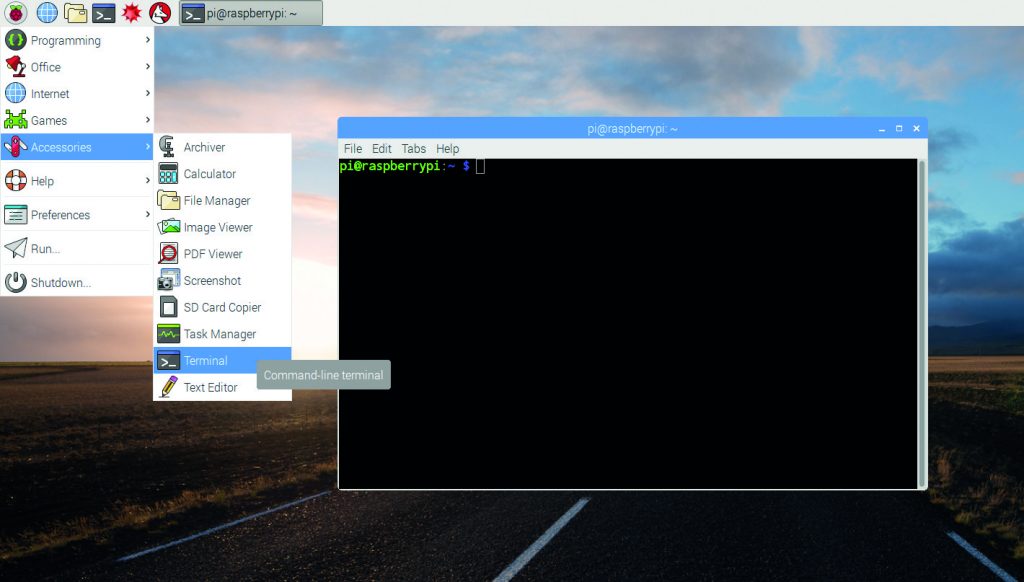
Click on the terminal window on the top menu bar. It is black with a > and _. Once you press it, you will be in the command terminal.
Write the following in the terminal window: sudo apt-get install unclutter and press Y if prompted.
.
The Pi will now install unclutter, which will help you get rid of the mouse pointer, for example.
Once it is finished, write the following:
sudo apt-get updated

sudo apt-get dist-upgrade

sudo apt-get install -y rpi-chromium-mods
Now, we configure the Pi to stay on, without going to Screensaver, and to load the page at Boot. Write the following:
sudo nano /home/pi/.config/lxsession/
A new window with text should open. Some things are written in it already, but add the following lines:
@xset s off
@xset -dpms
@xset s 0 0
@xset s noblank
@xset s noexpose
@xset dpms 0 0 0
@chromium-browser --noerrdialogs --incognito --autoplay-policy=no-user-
Hit CTLR+O, ENTER and CTRL+X in that order to exit the editor. Then write:
sudo reboot
Press enter and the system should reboot and boot you into your taplist.


